
403 Forbidden Error - What It Means and How to Fix It
You visit a website, and instead of content, you see "403 Forbidden" or "access denied." The server is working, the resource exists - it just won't let you (or Googlebot) in.
Error 403 is an HTTP status code from the 4xx class. According to RFC 9110 (Section 15.5.4), the server understood the request, but refuses to authorize it. This is not "page does not exist" (404) - it is "the page is there, but the door is locked." The most common causes are overly restrictive file and directory permissions (CHMOD) and a missing index.php or index.html file in a directory when directory browsing is disabled. Below, you will see what error code 403 means in your specific case, how to diagnose and fix it, and how to prevent blocked access from costing you your Google rankings.
What Does the 403 Forbidden Error Code Mean
A 403 code is a response where the server understands the request but refuses to fulfill it - even though the resource exists. RFC 9110 (Section 15.5.4) puts it simply: "The server understood the request, but is refusing to authorize it." The code belongs to the 4xx class, which designates client-side errors.
The refusal often stems from insufficient credentials, but it does not have to be related to logging in at all. The specification allows for reasons unrelated to credentials. It can be triggered by a firewall rule, an IP address block, or directory configuration. When the server wants to conceal the existence of a protected file, it returns a 404 instead of a 403.
The message varies - depending on the server, hosting provider, and application. You might see, among others:
- 403 Forbidden,
- Error 403 - Access Denied,
- HTTP Error 403,
- HTTP Error 403.14 - Forbidden (IIS: directory listing disabled or default document not enabled or configured incorrectly),
- Access Denied,
- 403 Forbidden-nginx.
The server returns a full page describing the error - it looks the same in every browser and operating system. The administrator can replace it with a custom one, featuring any text or graphics.
What Is the Difference Between Error 403, 401, and 404
These three codes look similar, but they mean different things - and require different fixes.
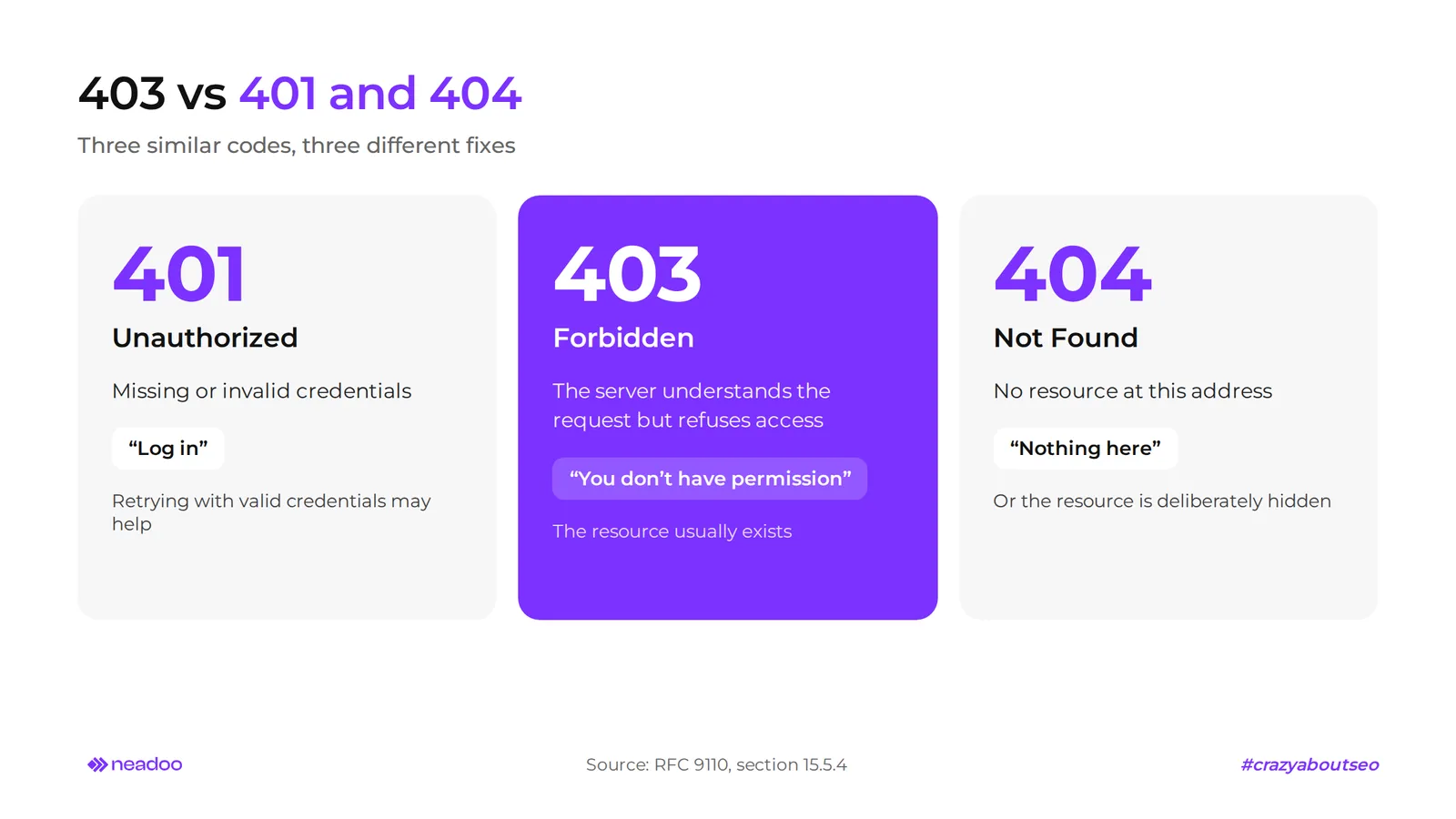
| Feature | HTTP 401 Unauthorized | HTTP 403 Forbidden | HTTP 404 Not Found |
|---|---|---|---|
| Meaning | Missing or invalid credentials | Access denied even though the request was understood | No resource at the given address |
| WWW-Authenticate header | Yes, indicates the authentication method | No | No |
| Retrying with valid credentials | May help | Usually does not change the outcome, even after authentication | Not applicable |
| Resource existence | Irrelevant | Resource usually exists | Resource does not exist (or is intentionally hidden) |
| Typical intent | "Log in" | "You do not have permission" | "Nothing here" |
Do not confuse 403 with HTTP 500 Internal Server Error. That is not a permissions issue - it is an internal server failure while generating the page. With a 403, the server works properly - it just says "no."
How to Fix a 403 Error in a Browser and App
Start with the simplest user-side steps: clear your cache and cookies, check the URL, and turn off your VPN. This is usually enough to fix a 403 Forbidden error without contacting the administrator. Below are the steps, ordered from the easiest to the most time-consuming.
- Refresh the page and wait. The browser can cache a 403 response and show it even after the issue on the server has been resolved. Force a fresh reload using Ctrl+F5 (Cmd+Shift+R on Mac), and if that does not help, wait a few minutes.
- Verify the URL. Check for typos, slashes, and file extensions. Entering a path to a directory instead of a file (e.g., without index.html) also results in an access denial when directory listing is disabled.
- Clear your cache and cookies. Outdated or corrupted cookies with an expired session are often the cause of the denial. Delete them for that specific domain rather than the entire browser so you don't get logged out of other services.
- Disable browser extensions. Ad blockers, password managers, and privacy plugins modify request headers. Check the site in incognito mode, where most extensions are disabled.
- Log in to an account with appropriate permissions. The dashboard, folder, or file might only be accessible to a specific user role.
- Change your VPN or proxy server settings. If you suspect geo-blocking, enable a VPN to change your IP address. If the VPN or proxy itself is causing the block (the IP address was blacklisted), disable it.
- Scan your device. Malware can modify the Hosts file and redirect the domain to the wrong location. Run an antivirus scan and verify that there are no unfamiliar entries in your Hosts file.
- Contact the website administrator or your Internet Service Provider (ISP). If nothing works, the block is on their end - provide the timestamp of the error, the URL, and your public IP address.
Error 403 in Apps and on iPhone
The same rules apply to applications. With error 403 in Roblox, it usually involves a blocked IP address, a VPN, or an expired session - log out, turn off your VPN, and restart the game. For error 403 Forbidden on an iPhone or error 403 in Safari, clear website data in Safari settings, disable extensions and iCloud Private Relay, and then test a different network (Wi-Fi instead of cellular data).
How to Fix a 403 Error on the Server Side
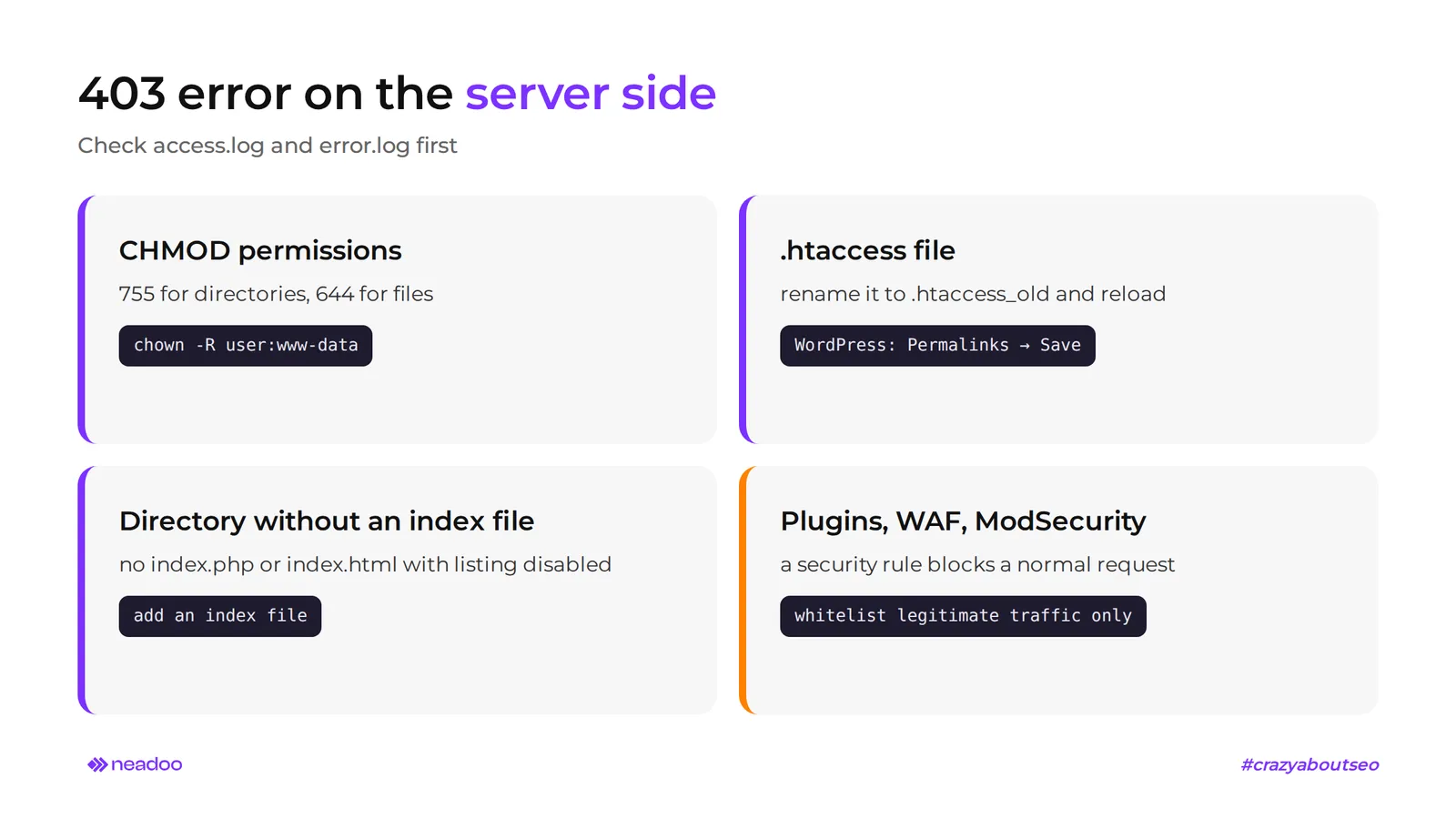
An administrator can resolve a 403 error in three steps: correct CHMOD permissions, clean up faulty directives in the .htaccess file, and adjust WAF firewall rules. Before changing anything, open access.log and error.log - an entry with the exact reason for the denial will save you hours of guesswork.
Correct File Permissions and Server Configuration
Permissions. The standard is CHMOD 755 for directories and 644 for files. You can restrict directories with dynamic content to 700. If the file ownership is incorrect, change it recursively via SSH: chown -R user:www-data /path/to/website.
The .htaccess file. A corrupted or overly restrictive directive is a frequent culprit. Make a backup, rename it to .htaccess_old (or remove the file from the root directory), and refresh the page. In WordPress, you can generate a clean file in Settings > Permalinks by clicking "Save Changes."
Modules and directories. Check the following: - mod_rewrite - disabled or misconfigured after enabling friendly URLs; - mod_proxy - can block specific requests; - missing index.php or index.html, or an empty directory with directory listing disabled; - WebDAV - a PROPFIND request without a Depth header or with Depth: infinity; - hotlink protection in cPanel - without adding your own domains, it will block your images.
Plugins, WAF, and malicious code. Rename the wp-content/plugins folder via FTP, or deactivate plugins in bulk and re-enable them one by one. The main suspects are security plugins, firewalls, and caching tools. WP Debugging can help pinpoint the issue, while logging PHP errors to a file will reveal script crashes.
ModSecurity or a WAF might mistake a normal request for an attack. A CDN or proxy can block a request before it reaches the origin server, while brute-force protection bans IPs after multiple failed login attempts. Also, verify domain delegation to your hosting provider's DNS.
If files were modified by malware, scan the site with an antivirus scanner and restore a clean backup. Keep your server, CMS, and plugins updated.
Deliberate Use of the 403 Error for Website Security
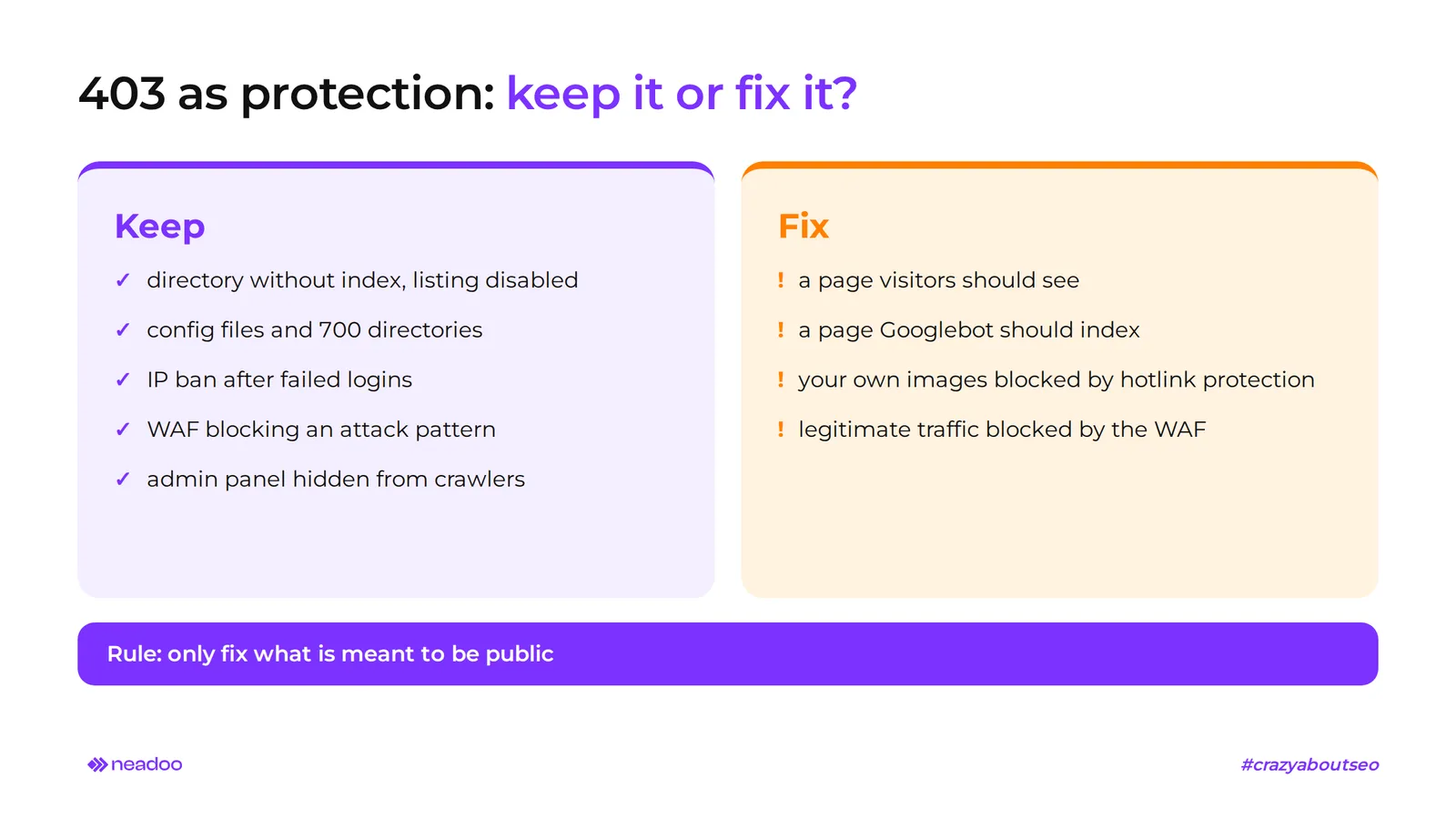
Not every 403 is a bug. Often, it is precisely the response you want to see.
| Situation | Verdict |
|---|---|
| Directory without an index when directory listing is disabled | Leave it - you are hiding the file structure |
| Denial applies to configuration files or 700 directories | Leave it - this is protection |
| Logs show an IP block after failed logins | Leave it - brute-force protection is working |
| ModSecurity or WAF blocks an attack pattern | Leave it; only add an exception if the block affects legitimate traffic |
| 403 affects a page that users and Googlebot should see | Fix it |
| Hotlink protection blocks your own images | Fix it - add your domains |
The rule of thumb: only fix what is intended to be public. For more on how search engines and language models interpret server responses, read our guide on AI SEO.
Let's check your website's potential
Share your website and email - we'll get back to you with a real analysis, no strings attached.
How a 403 Error Affects Website SEO
A persistent 403 error cuts Googlebot off from the site: the crawler cannot fetch content, so it can neither render nor index it. Every blocked request eats into your crawl budget, and pages that were previously indexed will eventually drop out of search results. This is not a penalty - it is a side effect of denying access to a resource that was meant to be public.
The worst version of this problem is silent. A user sees the site normally, while the bot receives a Forbidden status. The reason: server rules, a firewall, or a blacklist block the search engine's IP address, while a WAF or ModSecurity module treats intensive crawling as an attack. Geoblocking also comes into play - most Googlebot traffic comes from US addresses, so cutting off that region shuts down access to the entire site.
Procedure for Verifying Googlebot Blocks
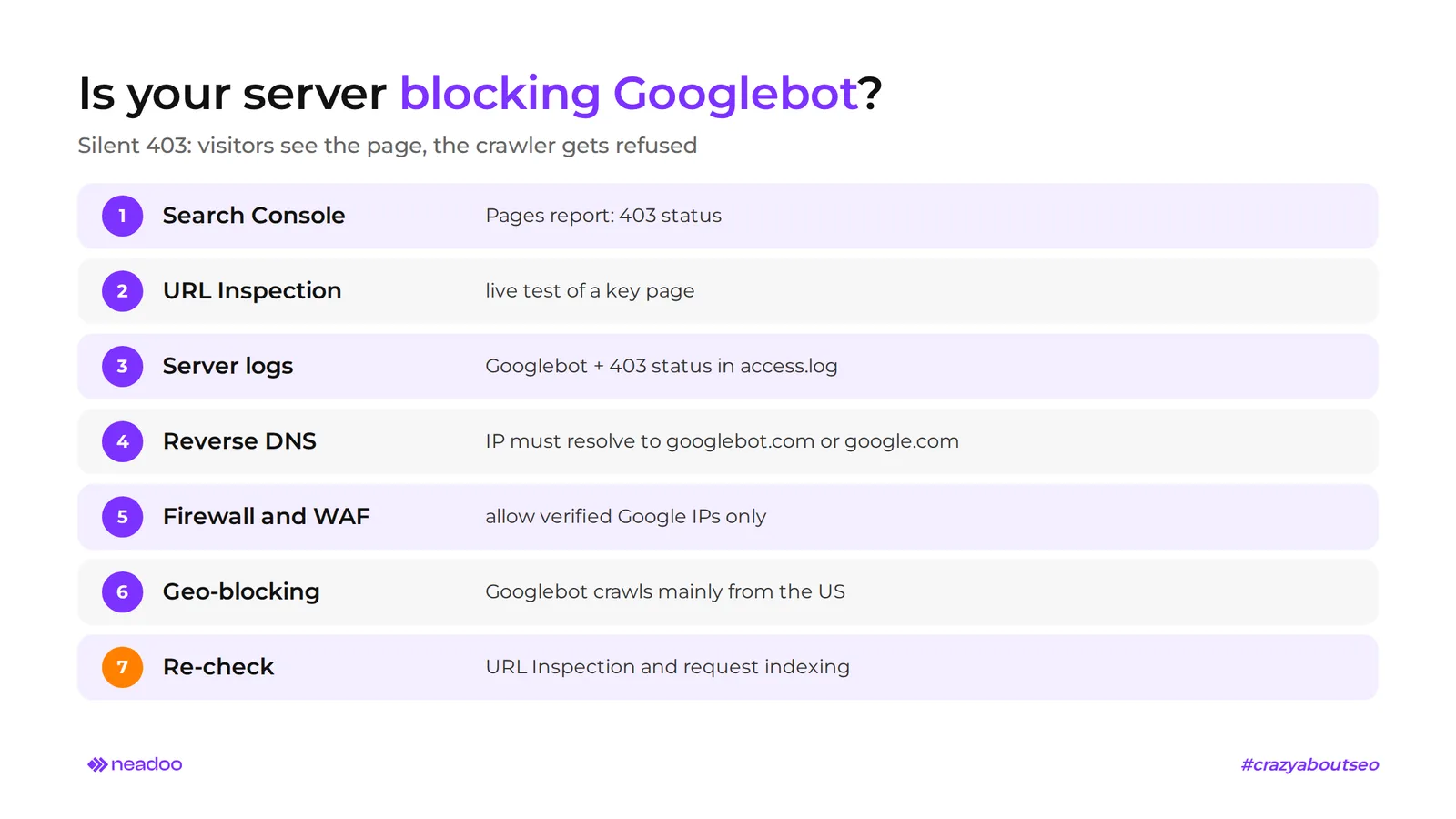
Go through the list below in order - from the quickest test to log analysis.
- "Pages" report in Google Search Console. Check whether the status "Blocked due to access forbidden (403)" appears in the non-indexed section. Note which URLs are affected.
- URL Inspection. Run a live test for a key subpage. If the fetch fails with an access denial, the issue is specific to the bot, not a regular browser.
- Server logs. In access.log, look for requests with the Googlebot user-agent and a 403 status. Note the IP addresses and the rule that denied access (an entry in error.log).
- Reverse DNS lookup. Verify that these IPs really belong to Google: a reverse DNS query should return a googlebot.com or google.com domain, and a forward lookup on that name should return the same address. You can keep blocking fake bots, but not the real one.
- Firewall and WAF rules. Check whether ModSecurity, your CDN, or brute-force protection isn't banning verified Google IPs. Add an exception specifically for them.
- Geoblocking. Make sure regional restrictions do not cover the ranges used by Googlebot.
- Re-verification. After applying the fix, repeat the URL inspection and request re-indexing for the most important pages.
This type of check is part of a technical audit, which at Neadoo is included in the core SEO package. By contrast, a denial for the admin dashboard should remain - crawlers have no business going there.
FAQ
Does a 403 error mean the page has been deleted?
No. The server understands the request and knows the resource exists - it simply denies access. A deleted page usually returns a 404 or 410. With a 403, the content is still sitting on the server, blocked by permissions, .htaccess rules, or a firewall.
What should I do if the 403 error only appears in the wp-admin panel?
Start with security plugins and your WAF - these most commonly ban IPs after failed login attempts. Check the .htaccess file in the wp-admin directory, any IP restrictions in your hosting panel, and ModSecurity rules in the logs. Renaming the wp-content/plugins folder via FTP can also help identify the culprit.
Why do I see a 403 error after turning on a VPN?
The VPN server's IP address may be blacklisted or located in a region subject to geoblocking. Many firewalls flag such addresses as suspicious traffic. Turn off the VPN or switch to a server in a different country - if the error disappears, the issue was with the IP, not the website.